Camera endoscope
Fa9ssaLibraries & Demo
3.019.00 Reviews
- Version
- 13.0
- Installs
- 100.00K
- Age Rating
- Everyone
Screenshots
Our Review of Camera endoscope
 Analysis by Appyee
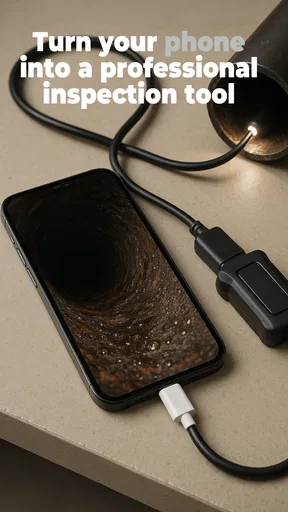
I tested Camera endoscope with a simple question in mind: can a phone become a useful viewing screen for a USB endoscope camera without turning the process into a confusing setup exercise? The answer is cautiously positive. This free Android app from Fa9ssa is made for one focused task—connecting a compatible USB endoscope camera and viewing what the camera sees—rather than acting like a general camera replacement. That narrow purpose is also its main strength.
The app sits in the Libraries & Demo section, which is a reasonable home for a tool built around demonstrating and using external hardware. Its store summary promises HD exploration of places that are difficult to see directly, but the practical experience depends heavily on the camera, cable, phone, and connection involved. The application is not the whole inspection system; it is the viewing part of a small hardware setup.
With a 3.4 average from roughly eight hundred ratings, it has attracted enough attention to show that people are trying it for real equipment rather than treating it as a novelty. I would describe it as a useful utility for curious home users, quick checks, and basic inspection work, while warning that it is not the right choice for anyone expecting a fully featured professional diagnostic platform.
What the app is really like when the camera is connected
The first thing I noticed is how dependent the experience is on the physical connection. Camera endoscope cannot create an inspection image by itself. You need a compatible USB endoscope camera, and the phone must recognize that accessory before the app becomes useful. This makes the initial moment different from opening an ordinary camera app: the important question is not whether the app launches, but whether the entire chain from camera to USB connection to phone is working.
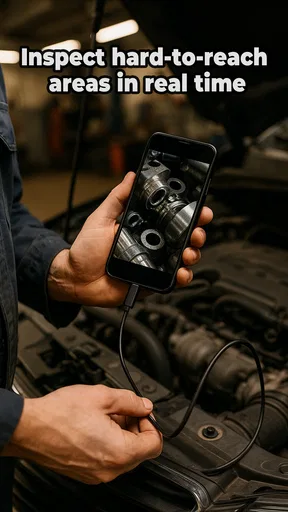
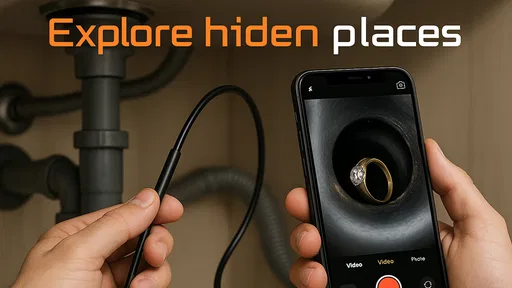
When that chain behaves, the concept is refreshingly direct. Instead of looking at a tiny built-in lens or trying to position a phone in an awkward place, I can guide the flexible camera into a narrow or hidden area and use the phone display as the viewing surface. That is valuable under a sink, behind furniture, inside a ventilation opening, around a vehicle component, or in another place where a normal phone camera simply cannot reach.
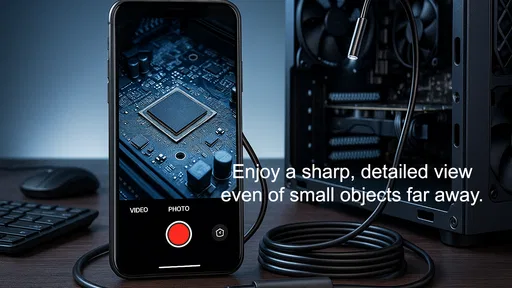
The HD wording is best understood as a viewing goal rather than a guarantee of perfect detail. The final image is shaped by the endoscope hardware, its lighting, the cleanliness of its lens, the angle of the probe, and the phone screen. A low-cost camera with glare or weak illumination will still look limited through this app. The application can show the feed, but it cannot turn a poor sensor into a precision inspection instrument.
I also found that the phone’s position matters more than expected. Holding the handset where I can see it comfortably while moving the probe reduces accidental bumps and makes the inspection calmer. If the screen is placed too far away, the cable movement becomes guesswork. For a small household check, I would first arrange the phone, then guide the camera slowly, rather than pushing the probe in while constantly changing grip on the handset.
Connectivity is part of the user experience
Because the accessory is connected by USB, the app’s most important “network” is actually the short physical link between the camera and the phone. A loose connector, an unsuitable adapter, or a cable that is difficult to keep steady can feel like an app failure even when the software is fine. This is one reason I would not judge Camera endoscope after a single unsuccessful launch.
The sensible workflow is to connect the camera before beginning the inspection, open the app, and give the setup a moment to establish the feed. If the image does not appear, I would avoid immediately moving the probe into a dark or inaccessible space. Test the camera in front of you first. That simple habit separates a connection problem from a lighting or positioning problem and prevents unnecessary dismantling later.
There is also a practical distinction between using the app at home and using it somewhere mobile. At home, I can place the phone on a stable surface and keep the cable relaxed. In a garage, crawl space, or beside a vehicle, the cable may be pulled, twisted, or pressed against an edge. A setup that works perfectly on a table can become unreliable when the phone is being carried and the probe is being directed with the other hand.
I would therefore treat connectivity as something to manage, not something to ignore. Keep the phone close enough to see clearly, avoid sharp bends near the connector, and make the first test in a well-lit, accessible location. These are small steps, but they make this particular app feel much more dependable.
Useful mobile situations, and where it becomes awkward
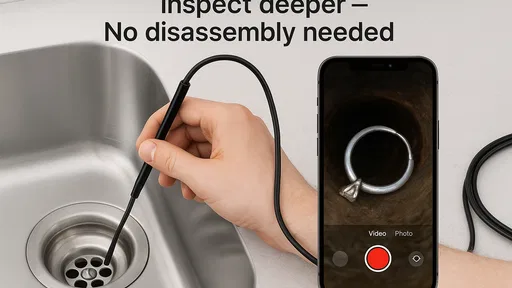
The strongest use case is a short inspection where I need an extra set of eyes. Imagine noticing moisture beneath a sink but not being able to see whether it comes from a fitting, a hose, or the back of the cabinet. A USB endoscope can reach into that cramped space while the phone shows the view. I can inspect before removing panels or calling someone to investigate a simple issue.
The same approach can help when looking behind a washing machine, checking a gap beside a refrigerator, examining a blocked drain opening, or finding a small object that has slipped into an inaccessible space. For these situations, the value is not advanced analysis. It is the ability to see first and disturb the area less.
There is a useful trade-off between reach and control. A longer or more flexible probe can access more places, but it may be harder to steer precisely. A short probe is easier to guide but may not reach far enough. Camera endoscope does not remove that physical compromise. I would choose the camera based on the job and think of the application as the monitor that makes the probe practical.
Using it outdoors or in a workshop requires more preparation. Bright sunlight can make a phone screen harder to read, while a dark cavity may expose the limits of the camera’s built-in illumination. I would shade the display with my hand when necessary and avoid assuming that “HD” means every surface will be clearly visible. Reflective metal, dust, moisture, and a lens pressed too close to a surface can all reduce what I can distinguish.
This is also not an app I would recommend for a situation where a failed connection could create a safety risk. For electrical work, structural inspection, medical use, or anything requiring certified equipment, a basic phone-connected endoscope should not replace the appropriate professional tool. It is best for observation and preliminary checking, not for making high-consequence decisions on its own.
Recovering when the picture disappears
A realistic test of any accessory app is what happens after the first problem. With Camera endoscope, the most useful recovery approach is methodical rather than dramatic. I would stop moving the probe, bring it back to an easy-to-see position, and check the physical connection. If the feed returns after reconnecting, the issue was probably in the link rather than the inspection location.
If reconnecting does not help, I would close the app, disconnect the camera, and start again in that order. Testing the camera against a plain, well-lit surface makes it easier to tell whether the lens is working. It is also worth checking whether the adapter and cable are firmly seated, because a connector that feels attached may still be making an unstable contact.
One non-obvious lesson is to avoid troubleshooting deep inside the target area. If the image freezes while the probe is behind a panel, pulling and twisting the cable can make the situation worse. Recover the feed before continuing, and keep a little slack in the cable so a small movement of the phone does not yank the camera. This is especially important in narrow spaces where retrieving the probe is already awkward.
I would also inspect the lens before blaming the app. A smear, condensation, or a piece of debris can produce a dull or hazy image that looks like a software problem. Cleaning the camera carefully and changing its angle may solve what appears to be a connection failure. The app provides the view, but the probe remains the part physically facing the problem.
These recovery steps are not glamorous, but they are exactly what makes the tool usable in everyday life. Anyone expecting a polished automatic setup may find the process a little hands-on. Anyone comfortable checking a cable and restarting a simple accessory will probably find the friction manageable.
Being sensible about data and phone resources
For a data-conscious user, the important point is that this is a USB viewing workflow rather than a social or cloud-centered experience. The inspection itself is centered on the local connection between the external camera and the phone. I still would not make assumptions about privacy, storage, or background behavior without checking the app’s current device prompts and system settings, but the practical setup does not require treating the inspection like an online broadcast.
That distinction matters when looking inside a private area such as a home, vehicle, or workplace. I would keep the phone screen oriented away from other people and avoid leaving an inspection running after the task is complete. If I need a record of what I saw, I would use only the capture options actually available on my device or in the app rather than assuming that every endoscope workflow includes built-in recording.
There is another data-conscious habit that is easy to overlook: prepare the inspection before connecting. Decide what you are checking, clear the route, and place a cloth or light near the work area if appropriate. This reduces the time the camera is active and avoids repeated attempts caused by poor visibility. It also helps conserve the phone’s battery, since a bright screen and a continuous camera feed can be demanding during a long session.
The app is free to install, but its listing also shows in-app purchases at around fourteen dollars per item. That makes it important to pay attention to any purchase screen and understand what an optional item provides before confirming it. For a person who only needs occasional viewing, the free starting point may be enough; for someone comparing several accessory apps, the possible purchase cost should be considered alongside the price and quality of the USB camera itself.
Camera endoscope is rated for Everyone, which fits the straightforward nature of the tool. It is accessible to a broad audience, although younger users should still be supervised around cables, small connectors, water, machinery, and any place where a probe could become stuck. The age rating does not change the physical risks of the inspection environment.
How it compares with ordinary camera apps and specialist tools
A normal phone camera is better when the subject is already visible and I need quick photos, familiar controls, or easy sharing. It opens with less preparation and is more flexible for general photography. Camera endoscope wins only when the problem is physical access. Its value appears in the gap between “I can see the area” and “I need to see behind or inside it.”
Dedicated inspection monitors are a stronger choice for frequent professional work. They may offer a more integrated body, a camera designed as part of the same system, and controls intended for repeated field use. A phone-based setup is more appealing when I already own a compatible USB probe and want to avoid carrying another display. The trade-off is that I must manage compatibility, connection stability, phone placement, and the limitations of the accessory.
Other endoscope apps may be preferable if a user specifically needs advanced capture, measurement, annotation, or a workflow built around a particular camera brand. I would not choose Camera endoscope on the assumption that every specialist feature is present. Its appeal is its focused role as a viewing companion, not a promise of a complete inspection suite.
This also explains why opinions about it can vary. Someone with a reliable camera and a simple home repair may find it immediately useful. Someone pairing it with an incompatible or poor-quality probe may blame the app for a disappointing image. The software and hardware should be evaluated together, because neither side tells the whole story.
Who should install it
I think Camera endoscope makes sense for Android users who already have, or are considering, a USB endoscope camera and want a practical way to inspect tight spaces. It is particularly suitable for occasional household checks, hobby projects, basic vehicle observation, and situations where seeing the problem before taking things apart can save time.
I would skip it if I only want a regular camera, if I dislike dealing with cables and adapters, or if I need documented professional inspection results. I would also look elsewhere if my main goal is advanced image management rather than simply viewing the connected probe. The app’s narrow focus is helpful when it matches the task, but limiting when it does not.
The current version is 13.0 and it runs on Android 7.0 or later, so the minimum software requirement is not especially demanding for compatible Android devices. Still, an older phone may be less comfortable for this job if its screen is dim, its USB connection is unreliable, or its battery is already weak. A newer phone is not automatically required, but a stable device makes the physical inspection easier.
Fa9ssa has kept the idea understandable: connect the camera, use the phone as the display, and explore places that are normally difficult to view. That simplicity is worth preserving. I would rather see a focused tool that gets the basic connection right than a crowded interface that buries the live feed under controls I do not need.
My connectivity verdict
After looking at the app through the lens of connection reliability, mobility, recovery, and careful use, I see Camera endoscope as a useful but equipment-dependent utility. It does not make an endoscope camera effortless in every situation, and it cannot compensate for weak hardware or a troublesome adapter. What it can do is turn an Android phone into a convenient inspection screen when the physical setup is compatible.
My recommendation is simple: try it if your need is specific and practical, especially for a quick look behind, beneath, or inside something that a normal phone camera cannot reach. Test the complete setup before starting a difficult inspection, keep the phone and cable positioned deliberately, and treat the image as helpful evidence rather than a professional diagnosis.
For occasional users, the free entry point and focused design make it worth considering. For demanding work, a dedicated inspection system or a more specialized app may be a better investment. Its real strength is not replacing every camera tool; it is making a compatible USB endoscope useful in the moments when physical access is the problem.
In my experience, that is enough to give it a clear place on an Android device—but only when the camera, connection, and job are all a good match.
Privacy and Permissions
See what permissions an app requests and how it handles your data.
- Camera
- take pictures and videos
- Microphone
- record audio
- Other
- view network connections, full network access, prevent device from sleeping, Google Play license check
Verdict
Strengths of Camera endoscope
- Works with many USB OTG endoscope cameras.
- Live preview makes inspection quick and convenient.
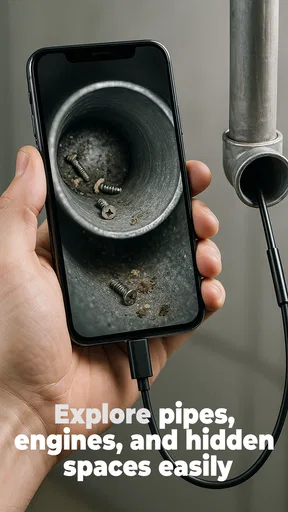
- Useful for pipes, drains, engines, and hard-to-reach spaces.
- Simple controls are suitable for first-time users.
- Can help identify blockages before calling a professional.
Limitations of Camera endoscope
- Requires a compatible OTG adapter and supported camera.
- Image quality depends heavily on the connected endoscope.
- Some phones may not supply enough power to the camera.
- Limited lighting can make deep or dark areas hard to inspect.
- Compatibility may vary across Android versions and devices.
Other Releases by Fa9ssa
View All
XB Game Controller
Libraries & Demo3.6
Similar Picks in This Category
View All
PGT: GFX, Launcher & Optimizer
Trilokia Inc.4.5

AusweisApp Bund
Governikus Service GmbH3.7

Cardboard
Google LLC3.2

Gamers GLTool with Game Tuner
Trilokia Inc.4.5

Multi Web Chat - Read Secretly
World Scan & Cleaner3.8

App Cloner Premium & Add-ons
App Listo1.9
Frequently Asked Questions
What is Camera endoscope, and what can I use it for?
Camera endoscope is an app designed to display live video from a compatible endoscope or inspection camera on your Android or iOS device. After connecting the camera, you can use the app to look inside pipes, drains, engines, walls, machines, and other difficult-to-reach spaces. Its usefulness depends heavily on the camera hardware, connector, and operating-system compatibility.
How do I connect an endoscope camera to my phone?
The connection method depends on the specific endoscope model. Some cameras connect through USB-C, Micro-USB, or Lightning, while others create their own Wi-Fi network. After plugging in the camera or joining its wireless network, open Camera endoscope and allow any requested permissions. If there is no image, check the adapter, OTG support, camera power, and whether the app supports your device.
Does Camera endoscope work with every inspection camera?
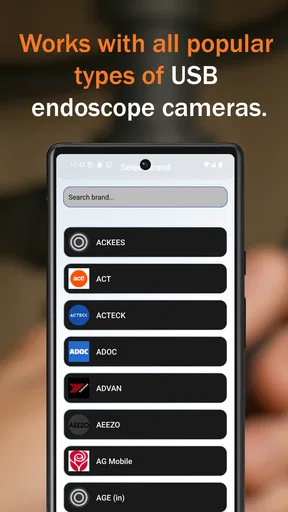
No. Camera endoscope is not guaranteed to work with every inspection camera. Compatibility can depend on the camera chipset, USB or Wi-Fi protocol, connector type, Android OTG support, iPhone requirements, and the application version. Before downloading, check the camera manufacturer’s instructions and the app listing for supported devices. A physically matching connector alone does not always ensure compatibility.
Can I take photos or record videos with Camera endoscope?
If supported by your connected camera and the installed app version, Camera endoscope may let you capture still images or record inspection videos while viewing the live feed. You may need to grant access to the camera, microphone, photos, or device storage. Image quality is determined mainly by the inspection camera, lighting, lens, and connection stability rather than the phone application itself.
What should I do if the screen stays black or the video keeps disconnecting?
Start by confirming that the endoscope is receiving power and that its cable or Wi-Fi connection is secure. On Android, enable OTG if your phone requires it and close other apps that may be using the camera. On iOS, verify the correct adapter and network connection. Restarting both devices, reopening Camera endoscope, and checking permissions often resolves basic connection problems.
